NotebookLM's PPTX Export Is Images — How to Get Editable Slides
What NotebookLM's PPTX export actually gives you
Since the February 2026 update, NotebookLM (Gemini Notebook) can export its generated slides as a .pptx file, and you can revise slides with prompts before exporting. That is genuinely useful — but when you open the file in Microsoft PowerPoint, each slide is one baked-in image. Clicking the headline selects a picture, not text. Fixing a single typo, changing a number, or matching your corporate font still means rebuilding the slide by hand.
Your options for making the slides editable
1. Rebuild manually. Re-create the layout in PowerPoint and retype everything. Faithful, but slow — infographic-style slides can take hours.
2. Generic OCR. Copy the text out with an OCR tool and paste it into a blank deck. You get the words, but you lose the design entirely.
3. AI conversion that preserves the design. A converter reads the text, removes it from the image, restores the background behind it, and places the same text back as editable text objects — so the slide looks the same but is now editable.
How Swift-Slide converts NotebookLM slides
Swift-Slide takes the third approach. Upload the PDF or image that NotebookLM generated, and AI lifts the text off, inpaints the background, and puts the identical text back as editable objects. Edit in the browser, then export a PPTX that opens natively in PowerPoint.
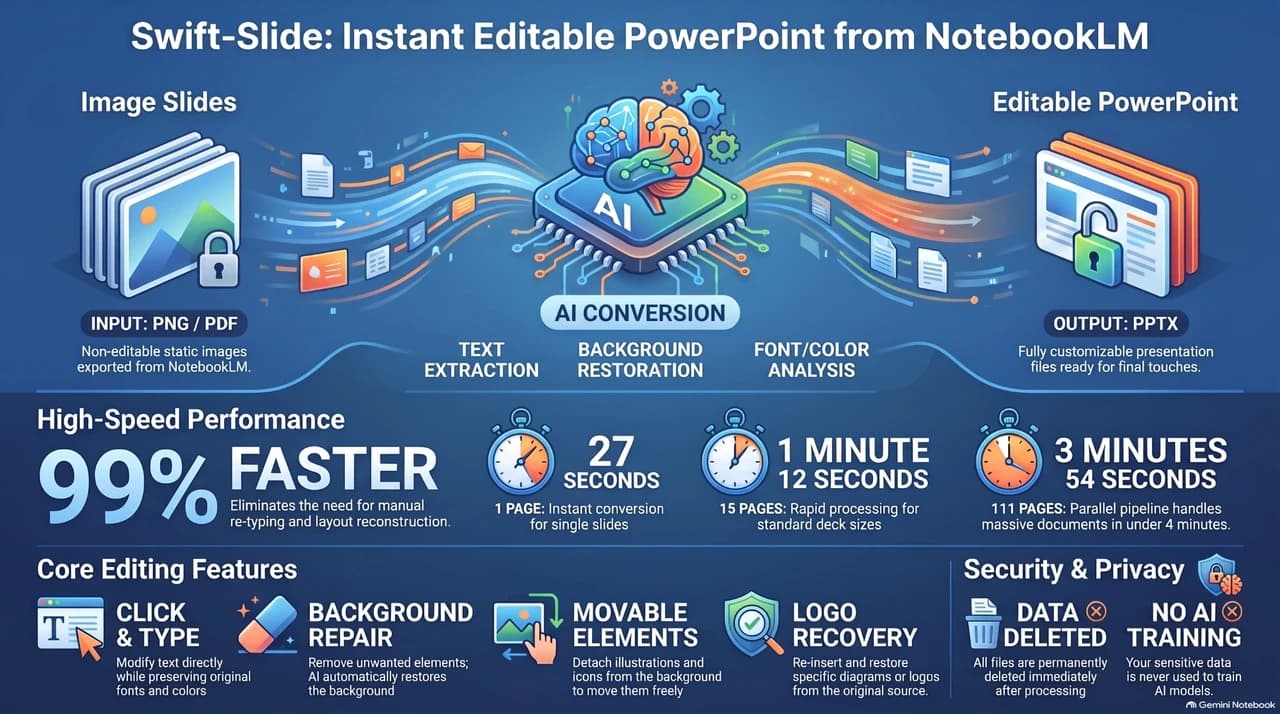
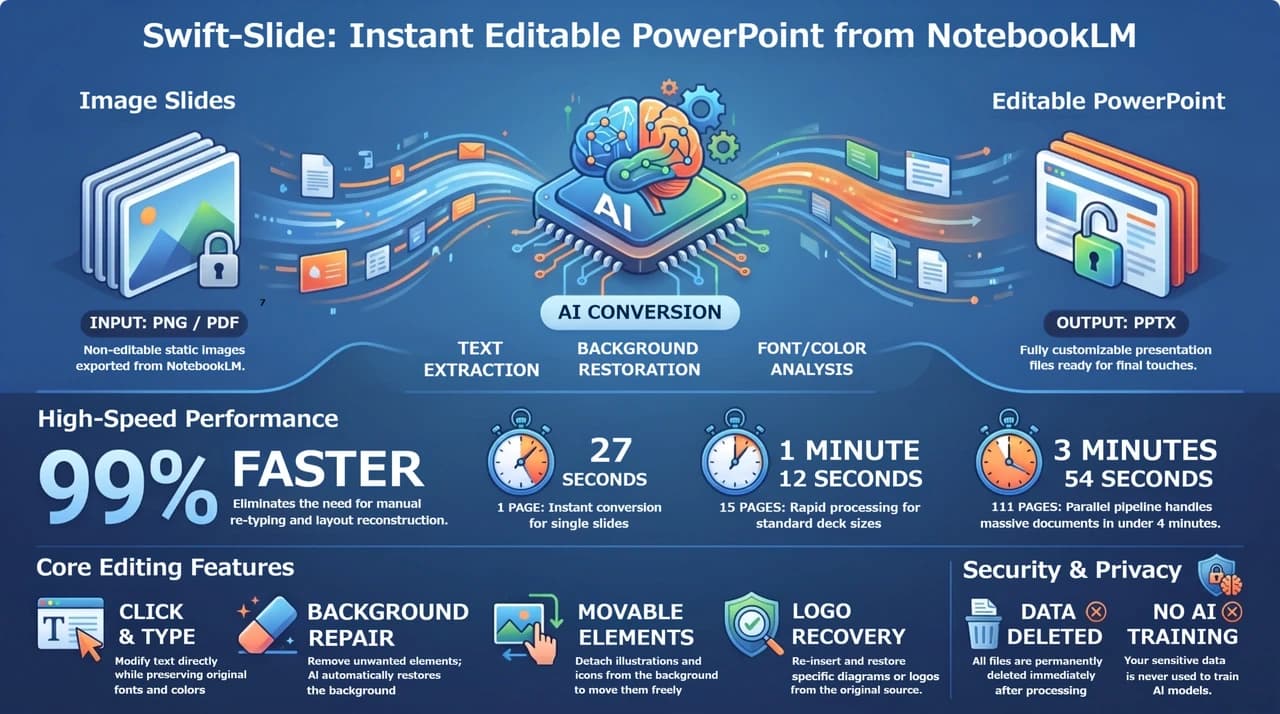
Actual conversion results. Output quality varies with the source material.
Conversion takes roughly 30–60 seconds per image, with multi-page files processed in parallel. There is a free plan (5 pages per month, no credit card), so you can test it on your own slides first.
*Times are our measured examples (Mar–Jul 2026). Results vary with source material and load.
FAQ
Does converting change my slide content?
No. Swift-Slide reads the text on your slide, lifts it off, restores the background behind it, and places the same text back as editable text objects. The wording stays identical — it just becomes editable.
Does it work with slides in languages other than English?
Yes. Japanese and English are fully supported, and the OCR engine handles mixed-language slides.
What happens to my uploaded file?
Uploaded PDFs and images are deleted promptly after processing (zero-retention design), and your documents are never used to train AI models.
Try it on a NotebookLM slide — no sign-up needed
Convert and edit one page without an account. A free account is only needed to download. Or open the demo editor.
Swift-Slide is not affiliated with Google LLC or NotebookLM (Gemini Notebook). NotebookLM is a trademark of Google LLC. Feature descriptions of NotebookLM are accurate to the best of our knowledge as of August 2026.