Swift-Slide Guide
From conversion tips,
to the finishing touches.
Which documents work best, the editing basics, and how to fix things when they don't go to plan. Start wherever you need.
01 / Get Started
Finish one page first.
Pick a document
No sign-upConvert, then edit
No sign-upSign up free to save
Sign up to download
Related questions
02 / Know the Result
Knowing the strengths changes the result.
Documents we handle well — legible text on a simple background
Explainer slides on a solid background
Text sitting on a solid or gradient background. This is the pattern where text removal and background restoration are most reliable.
AI-generated slides
Slides exported from NotebookLM (now Gemini Notebook), Canva, Gamma and the like. Flat color schemes and legible text are a great fit — this is the main use case Swift-Slide is built around.
Infographics where figures and text are separate
Bullet lists, and layouts that combine shapes with text. Shapes and icons stay as images, while only the text becomes editable.
Documents where you'll want to check the result — text over photos, and very small text
Repairing over photos and patterns, and reading low-resolution, handwritten or decorative characters, can be unreliable. With documents like the following, erase marks may remain or the text may not become editable.
- Text over photos
- Because the background carries so much detail, the restored area tends to show erase marks such as blur or uneven color.
- Extremely small text or low resolution
- Character outlines break down and can't be read, which makes missed detection and misrecognition more likely.
- Handwriting
- Letterforms are irregular, so recognition accuracy is unstable.
- Heavily rotated text
- Anything other than horizontal or vertical writing is out of scope, so heavily rotated or slanted characters don't become editable and stay as part of the image (vertical writing is detected and reproduced automatically).
- Complex textured backgrounds
- With fine patterns like wood grain or fabric, the restored area may not line up seamlessly with the surrounding pattern.
About reproducing fonts and colors
We keep the original design while making the text editable. Rather than an exact visual copy, what matters to us is that you can fix it and use it.
Fonts
We estimate roles such as heading and body, along with text size, from the original image and reproduce them. The original font name isn't kept: right after conversion, everything is Meiryo. From "Font" in the editor you can switch to any of the eight fonts built into PowerPoint (Meiryo, Yu Gothic, BIZ UDPGothic, Yu Mincho / Arial, Calibri, Times New Roman, Georgia). If the original used a mincho (serif) typeface, Yu Mincho gets you closer to it. Note that Georgia uses old-style figures, so digits sit at varying heights — that is how the typeface is designed, not a display fault.
Text color
Text color is estimated from the original image and reproduced. Logos, and decorative lettering with 3D or gradient effects, may be kept as images to preserve the design.
For a PDF that carries text information, that text is used as it is. Image and scanned areas are read with OCR. Fonts, sizes and colors can all be changed freely in the editor and in PowerPoint after converting.
03 / Edit the Details
Fix the words. Tidy the positions. That's all it takes.
Edit in your browser, then export to the format your next job needs. Beyond rewriting, moving and recoloring text, the "Eraser (background repair)" and "Crop and insert from the original page" tools described below are all used from this screen.
The whole editor screen
Swift-Slide treats text overlapping logos, icons and illustrations as "part of the design" and deliberately leaves it in place so as not to break the artwork. Because of that, both "text you wanted gone remains" and "a figure you wanted to keep disappears" can happen. For finishing, there are two tools with opposite roles.
Eraser (background repair)= remove what's left
- • Smooth out the marks left by removing text (blur, uneven color)
- • Erase text left on top of a logo or illustration, background and all
Crop and insert from the original page= bring back what disappeared
- • Restore a logo, figure or illustration that disappeared after being mistaken for text
- • Paste the original design back as an image, including the text on a logo or illustration
- 01
Rewrite the text
How do I rewrite text and change its size and wrapping? - 02
Adjust position and look
Can I recolor just part of the text, or make it semi-transparent? - 03
Add photos and logos
How do I add a photo or logo of my own?
Tips that make editing smoother
- What are the keyboard shortcuts, and how do multi-select and zoom work?
- How does autosave work, and what about editing in several tabs or on several devices?
- How do I switch between pages, and what do the red tabs mean?
- Can I use it on a smartphone?
- What is the difference between "Undo", background versions and "Compare"?
04 / Make It Right
Start from what bothers you.
Pick what's bothering you to see which tool to use and the steps.
Tidy up the background with the eraser.
Use it when leftover original text, or the marks left where text was removed, bother you. It uses none of your page allowance; it spends one of the count shared between the eraser and object separation. Over photos and patterns, the repaired area can still show blur or uneven color.
- Check the background
Open "Eraser (background repair)" in the editor and you see just the background, with the text taken out.
- Brush over the area to fix
Brush over and select the spots where erase marks bother you, or where text was left behind. The knack is not to make the area too wide.
- Repair it, then compare
Press "Run touch-up" and the AI repairs just the selected area again. You can switch versions to compare before and after.
Bring back just the part you need from the original.
Use it for a figure that disappeared along with the text, or for a logo you want to keep exactly as it looked. It uses neither your page allowance nor the count shared with the eraser.
- Open the original image
Choose "Insert" → "Crop and insert from the original page" in the editor toolbar, and the original pre-conversion page appears as it was.
- Draw a box around the figure
Drag a box over the original document around the area you want back. Turn on "Remove background" for a cutout with a transparent background ("Remove background" appears only in WebGPU-capable browsers such as Chrome / Edge).
- Insert it, then position it
The boxed area is inserted as an image. Drag to move it, grab a corner to resize, and it is exported into the PPTX just as it looks.
What you insert is a single image; you can't edit the text or the lines inside it individually. Reach for it when a company logo has disappeared, a chart broke along with the text inside it, or you want to keep handwritten-style decorative lettering as an image.
Separate a figure so you can move it.
Use it when you want to move an illustration or a floor plan to tidy up the spacing and the layout. It's available on every plan, including Free. It uses none of your page allowance, and spends one of the count shared with the eraser.
- Pick the figure you want to move
Open "Separate objects" in the editor and press "Start," and the AI outlines illustration and icon candidates. The boxes can be moved and resized, and you can add one by hand by dragging on empty space.
- Review the cutout
The default is "Keep background" — inserted as a rectangle, exactly as it looked. For the figures you want transparent, run "Remove background" first and then choose "Use cutout"; set anything you'd rather leave in the background to "Exclude."
- Adjust position and size
Each figure you adopt becomes its own image, lifted off the background so you can move it independently of the text.
What you get is an image: the original figure doesn't turn into a PowerPoint shape or SmartArt. Cutting runs inside your browser, and only the transparent "Remove background" option requires a WebGPU-capable browser. Complex figures and gradient backgrounds can be hard to cut cleanly, but the default "Keep background" inserts the rectangle as it is, so the original look is preserved. When objects overlap, separate the one on top with "Use cutout" first, then run object separation again.
Uses per page
The eraser and object separation draw on a single count per page, shared between them. One use is spent the moment a repair succeeds; a failed repair costs nothing, and rolling a version back does not give the use back. Neither tool uses your page allowance for conversion, and "Crop and insert from the original page" doesn't draw on this count at all. Only the transparent "Remove background" option needs a WebGPU-capable browser (a recent Chrome or Edge, for example), and on first use a screen asks you to agree to downloading the AI model (about 240 MB).
05 / Save Your Way
Take it to the next job, in the format you want.
Formats you can upload
- PDF (up to 50MB, up to 1,000 pages)
- PNG (up to 10MB)
- JPEG (up to 10MB)
- WebP (up to 10MB)
Converting 1 page uses 1 page of your allowance. Pages are only deducted for pages that convert successfully — failed pages are not charged. If the images rasterized in your browser add up to more than 50MB, processing switches to the server automatically, and the limit is then 400 pages. Save PowerPoint and Word documents as PDF before uploading. You can export as PPTX, PDF, PNG or JPEG; PDF, PNG and JPEG are limited to 30 pages per export, while PPTX has no page limit.
Which files convert, and into what
Regular PDFs with selectable text, image-only PDFs, and PDFs that mix both all work. Only the text becomes editable; figures and photos stay as they are.
| Input | Support | After conversion |
|---|---|---|
| Regular text PDFs (selectable text) | Supported | Text from the PDF's text layer becomes editable text as-is; figures and photos are kept |
| Scanned and image-based PDFs | Supported | OCR detects text inside the image, AI restores the background, and the text is placed back as editable text |
| PDFs containing both selectable text and text embedded in images | Supported | Both the existing text layer and the in-image text become editable together |
| NotebookLM (now Gemini Notebook) slides | Supported | Editable PPTX with the original design intact; the watermark can be removed |
| Infographics | Supported | Text becomes editable and the background behind removed text is restored by AI |
| PNG, JPEG and WebP images | Supported | Text inside the image becomes editable text in a PPTX |
| A4, portrait, landscape and square pages | Supported | Slide dimensions follow the original page's aspect ratio |
06 / Get Unstuck
Stuck? Here's the next step.
Related questions
07 / Quick Answers
Frequently asked questions, by what you need.
From conversion quality to how your data is handled and the details of each plan — if you're unsure, start here.
Open the category you're after. The detailed conditions are here too.
Search the whole guide by keyword ↑Trying it & sign-up7
Can I try it with my own PDF or image without signing up?
Yes. You can convert one page of a PDF, PNG, JPEG or WebP and edit its text without signing up. If you choose a PDF, pick whichever single page you want from the thumbnails that appear. A free account is only needed when you download the result.
Link to this answerWhich editing features can I use in the trial?
You can edit and add text, undo and redo, use "Compare", use the eraser (background repair), and use "Crop and insert from the original page" and "Shape" from the "Insert" menu. "Insert from a file", which places an image from your own device, and object separation are available only after you sign up. The eraser can be used once per page even before you sign up.
Link to this answerIf I sign up, are the edits I made in the trial carried over?
If you sign up straight from the trial screen, the converted result and your edits are carried over and you can download them. The page you converted in the trial does not use any of the free pages you get after signing up, and it comes out watermark-free. Signing up does not extend how long the trial result is kept, though: please download it within 24 hours of creating it.
Link to this answerWhat happens if I already have an account?
Please sign in as usual. If you sign in with an account you already have, the trial's converted result and edits are not carried over. Convert the documents you need from the dashboard after signing in.
Link to this answerIf I cancel the sign-up, do my edits disappear?
No. Your saved edits stay open from the same browser until the trial's retention limit (24 hours from creation). Going back to the trial page only shows the upload screen, though, and there is no list that takes you to your earlier result. Reopen the editor from your browser history or a bookmark. If you sign up when you want to download, you get the file just as it is.
Link to this answerAre there limits on how many trials I can run, or on how long results are kept?
One page per run, and up to 3 pages per day from the same connection (IP address). If you share a network, at work for example, you may be sharing that daily allowance. When overall usage is heavy we may narrow how many trials we accept for a while. Pages that fail to convert do not use up your trial allowance. Results are deleted 24 hours after they are created.
Link to this answerWhat is the difference between "Try with our sample slide" and the editor demo?
"Try with our sample slide" actually converts a bundled sample on the spot, for when you have no file at hand. It behaves exactly like converting your own document and uses one page of your trial allowance. "See the editor demo", on the other hand, is a lightweight version where you only try editing text on an already-converted sample. Nothing is converted and no edits are saved, and the eraser and cropping from the original page cannot be used. The demo is the one place where you can export a watermarked PPTX without signing up.
Link to this answerConversion & quality19
What are the supported formats, file size limits and page limits?
PDFs up to 50MB and PNG, JPEG or WebP images up to 10MB each, with one file per upload. A single image counts as one page. The PDF limit is 1,000 pages, but for slides made of images, if the total size after rendering them for conversion goes over 50MB, processing switches automatically to our servers and the limit there is 400 pages. Our own measurement (August 2026) puts an image-based slide at about 245KB per page, so in practice the ceiling is around 200 pages. Please split anything larger into separate files. PowerPoint and Word files cannot be uploaded directly, so save them as PDF first.
Link to this answerWhat happens when I do not have enough pages left?
With a PDF you can choose a partial conversion that processes only as many pages from the start as your remaining allowance covers. You cannot pick an arbitrary page range; it always starts from the first page. With 0 pages left you cannot start at all, so please change your plan or buy an add-on pack. Picking whichever single page you want from a PDF's thumbnails is possible only in the trial before you sign up.
Link to this answerHow is a PDF with selectable text converted?
When a PDF has a text layer, that text becomes editable text as-is: the characters, their position, size, color, bold and italic styling and angle are all read straight from the file. The background is built without drawing the text, so there are no erase marks or blurring. Figures and photos stay as images. The original font names are not kept, and text comes out in Meiryo right after conversion. The first three pages decide which route is used, so a document whose opening pages are images only, whose text data is garbled, or which is a scan carrying an invisible OCR text layer goes down the route that reads the text out of the image instead.
Link to this answerCan I edit photos, scans and AI-generated documents too?
Yes. Slides made with NotebookLM (now called Gemini Notebook), scanned PDFs and photo-like images all convert as long as they are in a supported format. Text inside an image is read by OCR, and whatever is recognized becomes editable. Small type, low resolution, handwriting and heavily styled lettering can be misread or missed. To check the result first, split off a few pages as a PDF and try those. Before signing up you can also pick any single page and check it for free in the trial.
Link to this answerAre vertical and slanted text reproduced?
Vertical (tategaki) text is detected automatically and reproduced as real vertical text, including in PowerPoint. Vertical runs of three characters or fewer are left out of auto-detection to avoid false positives, so they may be placed horizontally; select that text and switch it with the vertical text button in the properties panel. Slanted lines are reproduced at their detected angle, but text along a curve or a very short line can come out horizontal, so adjust those with the rotation handle in the editor. When a page has three or more lines tilted by more than 15 degrees, we treat them as decoration and leave them in the image.
Link to this answerSome text cannot be edited and is still part of the image
Text that could not be read, or that was read with low confidence, can stay as part of the image. Text inside figures and logos is sometimes left on purpose to protect the look of the artwork. Tidy the spot with the eraser (background repair) and put new text there with "Text" from the "Insert" menu, or bring the original appearance back with "Crop and insert from the original page". Converting again does not necessarily improve it, and it uses fresh pages from your allowance for every page that succeeds.
Link to this answerCan it handle languages other than Japanese, and reproduce the original fonts?
English and other scripts are recognized too, and accuracy depends on the language and the source material. Original font names are not kept, and text comes out in Meiryo right after conversion whatever the language. In the editor you can choose from the eight fonts built into PowerPoint (Meiryo, Yu Gothic, BIZ UDPGothic and Yu Mincho / Arial, Calibri, Times New Roman and Georgia), so for Latin-script documents try Arial, Calibri, Times New Roman or Georgia. Only the font name goes into the PPTX; the font file itself is not embedded. On a device that does not have that font another one is substituted, and how PDF and image exports look also depends on the device that produced them.
Link to this answerCan I edit tables and charts as PowerPoint shapes?
No. Original figures, photos, tables and charts are handled as images, so you cannot edit individual table cells, chart values or the lines that make up a diagram (to preserve the layout, a whole figure is treated as a single image). Readable text sitting on top of them is editable. Object separation lets you lift a figure you choose out as an image you can move on its own. If you want to place boxes and arrows of your own, open "Insert" and choose a shape from the Shape group; those are exported as shapes you can edit in PowerPoint.
Link to this answerHow long does conversion take? Does it keep going if I close the screen?
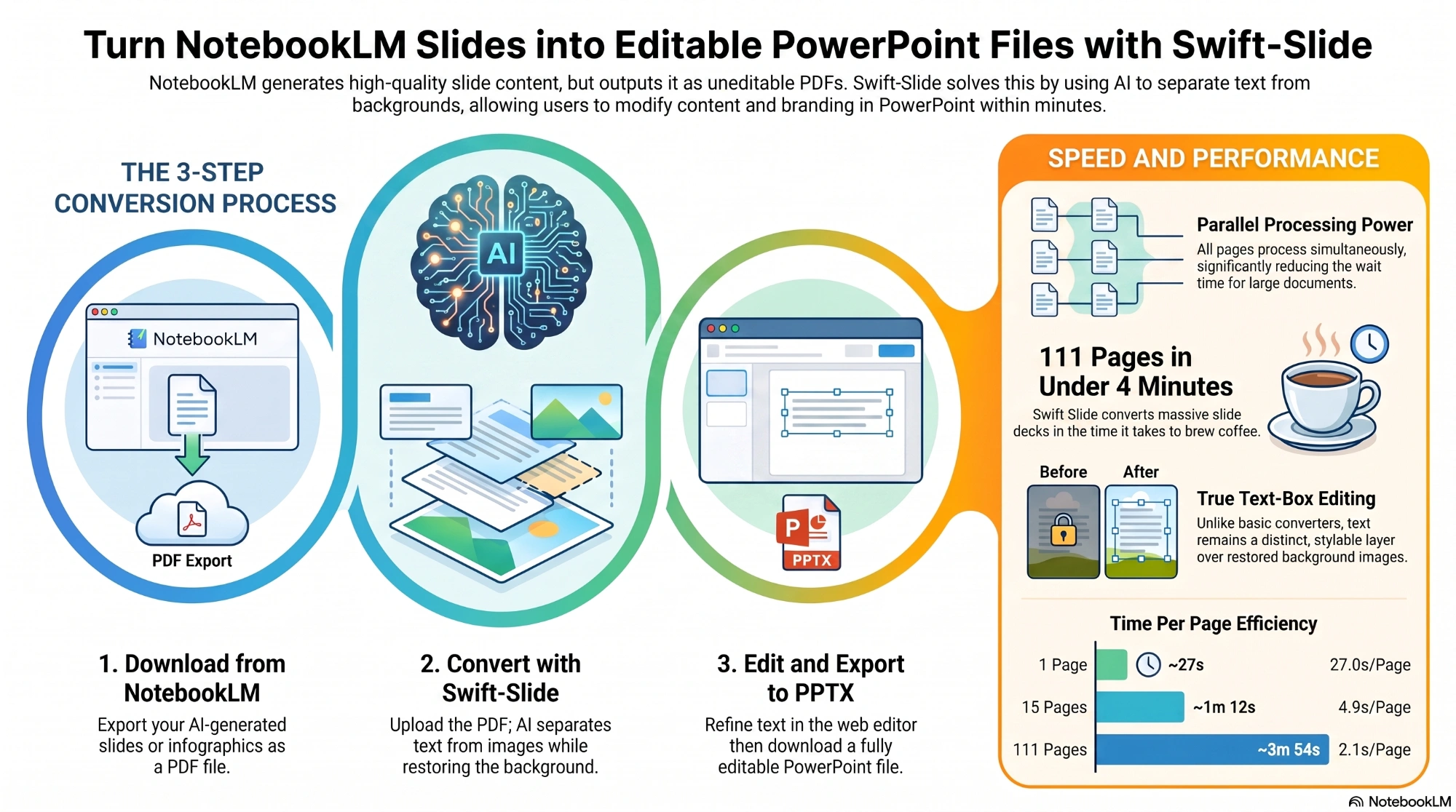
In our measured examples a single page takes about 30 seconds, 15 pages about 1 minute and 111 pages about 4 minutes. Pages are processed in parallel, so the time does not scale with the page count. *Times are our measured results (production use and load tests, Mar–Jul 2026). Results vary with page count, load, and source material, and are not a guarantee of future results. Once the upload has finished and the job shows as processing, you can close the screen: it continues on the server and you can check the status from the dashboard (please do not close it while the upload is still running). When every page succeeds we send a completion email, depending on your notification settings. There is no completion email for the trial before you sign up.
Link to this answerCan I use the converted files for work or commercially?
Yes. You keep the rights to the materials you upload (Terms of Service, Article 5), and the converted PPTX is yours to use. There are no restrictions from us on business or commercial use, such as proposals, training materials or promotional pieces. Please check for yourself that you have the right to use the original document, photos and logos.
Link to this answerCan I edit the text in scanned PDFs and images?
Yes. OCR (Azure Document Intelligence) reads the text inside the image, AI restores the background where the text was, and the text is placed back as editable text. The processing route differs from a PDF that carries text data, so the results have a different character. Handwriting, extremely small type and low-resolution originals are hard to read and can be misrecognized or missed.
Link to this answerWhat happens with a PDF that mixes selectable text and text inside images?
A PDF like that converts as a single document. Where text data exists we use that text, and text baked into images is read by OCR, so everything ends up editable within the same document. Figures and photos stay as images. The first three pages decide the route, though, so depending on how those pages are built the whole document may be read out of the images.
Link to this answerDoes it work with A4 portrait, landscape, square and other non-16:9 documents?
Yes. Slide dimensions follow the original page's aspect ratio, so A4 portrait, landscape and square pages all come out at their original proportions. When a document mixes portrait and landscape pages, a PPTX can hold only one slide size, so the orientation used by more pages sets the size (landscape if they tie) and pages with the other orientation are scaled down, keeping their aspect ratio, and centered with margins at the sides or above and below. If you want every page at its true size, choose "Split by page size and download as a ZIP" in the export dialog. Note that paper size for PDF export follows a different rule, so check it before printing.
Link to this answerCan I upload PowerPoint or Word files directly?
The supported formats are PDF and images (PNG, JPEG and WebP), so PowerPoint and Word files cannot be uploaded directly. In the original app choose "Save as PDF" or "Export as PDF", then upload that PDF. PDFs can be up to 50MB and images up to 10MB each.
Link to this answerCan it convert slides made by AI tools such as NotebookLM?
Yes. NotebookLM was renamed "Gemini Notebook" in July 2026 and is the same product, so slides and infographics made under either name convert exactly as before. What decides whether we can handle something is the input format, not the tool that made it, so anything you can export as PDF, PNG, JPEG or WebP works. Swift-Slide is not an official Google or NotebookLM service. For how to export a PDF or image, please see each service's own instructions.
Link to this answerDoes it also work with documents made in Canva, Gamma and other tools?
Yes. We do not limit it to any particular tool. Slides from Canva or Gamma, scanned paper documents, explanatory diagrams and flyers all work once they are a PDF, PNG, JPEG or WebP. Export steps and terms of use differ from service to service, so please check those along with whether you have the right to use the original material.
Link to this answerWill it look exactly like my original document?
We do not guarantee an exact match. Swift-Slide prioritizes handing you something editable over reproducing the look. On the route that reads text out of an image, the position, size and color of the text are estimated and the text is placed back, so fonts, line breaks, placement and color can differ, and the restored background may keep some blur or uneven color. A PDF that carries text data uses exact values instead of estimates, and the background is built without drawing the text, so those differences barely appear. You can fine-tune the finish in the editor or in PowerPoint, and anything you want to keep exactly as it looked, such as a logo or decorative lettering, can be brought back as an image with "Crop and insert from the original page".
Link to this answerText on top of a logo or illustration was not removed
That is by design. Text overlapping a logo, icon or illustration is treated as part of the design, and we deliberately neither remove it nor turn it into text, so the artwork is not broken. If you do want it gone, brush over the spot with the eraser (background repair) in the editor and the AI repairs it along with the background (this uses none of your page allowance). Then place new text with "Text" from the "Insert" menu if you need it. On a busy background, the repaired area can end up looking different.
Link to this answerText that is not on top of a figure or illustration was left behind
Text recognition has its limits: where glyphs are distorted, contrast against the background is low or the characters are small, the text may not be recognized and therefore not removed. Such text does not become editable text either. Trace over the spot with the eraser (background repair) in the editor and the background is repaired along with it (this uses none of your page allowance). Recognition varies slightly each time the same document is converted, so converting again may resolve it, but that is not guaranteed and it uses fresh pages from your allowance for every page that succeeds. Please try the eraser first.
Link to this answerEditing15
How do I rewrite text and change its size and wrapping?
Double-click a text box to rewrite it on the spot, and drag to move it. The left and right handles change the width of the box (where it wraps), not the text size, and the height follows the contents automatically. Text size is changed from the number in the properties panel (6 to 200), where you also adjust color and font. The width of a wrapped box is carried into the PPTX. To add text, choose "Text" from the "Insert" menu.
Link to this answerHow do I add a photo or logo of my own?
Choose "Insert from a file" in the "Insert" menu to pick an image from your device (on a narrow screen it sits under "More tools"). PNG, JPEG and WebP are supported, and the original file can be up to 30MB. SVG and HEIC are not supported, so please re-save those as PNG or JPEG. When the image is stored its orientation is corrected and it is converted to WebP at up to 2000px on the long edge. Inserted images can be moved, resized, rotated, duplicated, deleted and reordered, and they appear in PPTX, PDF, PNG and JPEG exports alike. They use none of your page allowance, though there is currently no way to change an image's opacity. This feature is not available in the free trial before you sign up.
Link to this answerCan I place boxes and arrows of my own?
Yes. Open "Insert" and choose a shape from the Shape group: a rectangle, ellipse, line and arrow are available, plus a rounded rectangle and a double-headed arrow, six in all. With a shape selected, the properties panel on the right sets the fill, line color, line width, line style (solid, dashed or dotted), corner radius, which end carries the arrowhead, and the arrowhead size (small, medium or large). The "Style" row settles color and line in one step from the style gallery, and the color picker has an eyedropper that lifts a color from anywhere on the slide. The row of actions in the same panel covers duplicate, bring to front, send to back, "Rotate 90°" and delete. In the PPTX they come out as real PowerPoint shapes and connectors (lines and arrows become connectors), so they can be edited in PowerPoint directly. Up to 100 shapes per page, and they use none of your page allowance. They also work in the free trial before you sign up.
Link to this answerIs there a limit on how many images I can add, or on their total size?
Up to 40 images per page, and 50MB in total across a project. Images added with "Insert from a file", images added with "Crop and insert from the original page" and images created by object separation all draw on the same budget. The count frees up as soon as you delete an image in the editor. The size total is measured from what is actually stored, so deleting does not free space until the weekly clean-up runs.
Link to this answerI want to bring back a figure or logo that disappeared
Choose "Crop and insert from the original page" from the "Insert" menu and draw around the area you need on the pre-conversion page image; it comes back as an image at its original position and size. It uses none of your page allowance and none of the uses shared by the eraser and object separation. Because it comes back as an image, the text and lines inside it cannot be edited individually. The limits on the number and total size of inserted images still apply.
Link to this answerHow many times can I use the eraser and object separation, and what do I do at the limit?
The eraser (background repair) and object separation share a per-page number of uses: Free 1, Light 2, Standard 3, Team and Enterprise 5. One use is counted when a repair or separation succeeds, and failures and timeouts cost nothing. Detecting candidates costs nothing either, and separating several figures together still counts as one. None of your page allowance is used. Undoing, or switching back to an earlier background version, does not return a use, and there is no monthly reset. On a page that has reached the limit, fix things with "Crop and insert from the original page", which costs no uses, with text editing, or in PowerPoint afterwards. Converting the original file again creates a separate project and uses fresh pages from your allowance for every page that succeeds (with no promise of a better result).
Link to this answerHow do I use object separation, and what is the trick when figures overlap?
Open "Separate objects" in the editor and press "Start", and the AI looks for illustrations, icons and figures. Tap the candidate boxes to select them ("Select all" and "Deselect all" are there too), and drag on empty space to add a region by hand. You can select up to 30 at a time. Press "Cut out" to review the result, choose how to adopt each figure, then press "Apply". The default "Keep background" inserts a rectangular image with its background; to make one transparent, run "Remove background" on its card first and then choose "Use cutout" (it is never switched automatically). Anything set to "Exclude" stays in the original background and is neither inserted nor erased. Applied figures become independent images you can move, rotate and resize, and they go into the PPTX as images. When figures overlap, separate the one on top first with "Use cutout", then run it again for the one underneath to reduce missing pieces (choosing "Keep background" the first time removes the whole rectangle from the background, which eats into the figure below). Ring shapes and intricate illustrations may not cut out cleanly. This feature is available after you sign up.
Link to this answer"Remove background", which makes the background transparent, is not available
Transparent background removal is the one step that needs a WebGPU-capable browser (the latest Chrome or Edge, for example), and where it is not supported the button says so. Even then, the default "Keep background" and cropping a region you choose still work as normal. The first time, we ask you to approve downloading a high-accuracy AI model (about 240 MB); it is kept in this device's browser afterwards, so later runs skip it. The transparency processing runs inside your device and no image is sent anywhere (depending on your hardware, each object takes roughly 10 to 60 seconds). This does not mean that conversion and candidate detection also run inside your device.
Link to this answerHow does autosave work, and what about editing in several tabs or on several devices?
Edits are saved automatically about 1.5 seconds after a change, and again before you switch pages. "Saved" on screen (a check mark on narrow screens) tells you where things stand. If "Save failed" appears, click it to retry. If the same page was updated first in another tab or on another device, the later save stops and you see "Updated elsewhere — reload". Whatever was saved first is protected and is never overwritten by the later version. Reloading discards the unsaved edits in front of you, so note down anything you need before following the prompt. Editing the same page at the same time is not something this is built for.
Link to this answerWhat is the difference between "Undo", background versions and "Compare"?
"Undo" and "Redo" cover the last 30 steps on a page and apply to text, images, shapes and the background. Switching pages clears that history. From the thumbnails at the bottom of the eraser screen you can go back to an earlier background version at any time. Only the background goes back: text, inserted images and separated images stay where they are (if the content looks doubled, select the images you no longer need and delete them). The "Undo" in the notice shown right after a separation also takes back the images that separation added, but it does not return the use it consumed. "Compare" is a slider that shows the pre-conversion original image against the current background, and edited text and inserted images are not included.
Link to this answerWhat are the keyboard shortcuts, and how do multi-select and zoom work?
Hold Ctrl on Windows or Cmd on Mac: Z to undo, Y or Shift+Z to redo, D to duplicate, S to queue a save, A to select all text (images and shapes are not included). Delete or Backspace removes the selection, Escape deselects or closes a mode, and the arrow keys move by 1px (10px with Shift). Select several items with Shift+click or by dragging a box, and the panel changes text color, size, bold and more for all of them at once. Right-click offers duplicate, bring to front, send to back and delete. On a PC you zoom with the minus and plus buttons at the bottom of the screen. Some shortcuts do not work while you are in an input field, while you are typing text, or in the middle of Japanese input conversion.
Link to this answerCan I use it on a smartphone?
Yes. Uploading, converting, editing and downloading all work the same way on a phone, though landscape orientation or a PC is easier for fine adjustments. Tap and drag to handle elements, and adjust text settings in the panel that opens from the bottom. Pinch to zoom up to 4x and use two fingers to pan; while zoomed in, one finger pans as well. Double-tap an empty spot to toggle between 2x and 100%, and swipe left or right to change pages (not while zoomed in, while editing, or with an element selected). Turn on Multi-select in the toolbar and tap to select several elements together. The right-click menu, box-drag selection, the thumbnail that appears when you hover a page tab and the minus and plus zoom buttons are not part of the touch layout. Whether background removal is available depends on your device's and browser's WebGPU support.
Link to this answerCan I recolor just part of the text, or make it semi-transparent?
Text color can be changed for just the range you select while you are editing the text. The highlighter (marker) applies to the whole text box and cannot be drawn over only part of the text. "Opacity" in the properties panel applies to text boxes, and there is currently no way to change an image's opacity. For shapes, the "Style" gallery offers translucent combinations.
Link to this answerHow do I switch between pages, and what do the red tabs mean?
Switch with the "Page 1", "Page 2" and so on tabs at the top of the editor. On a PC, hovering a tab shows a thumbnail of the original page, and on touch devices you can also swipe left or right under the right conditions. Edits are saved automatically per page, and again before you switch. A red tab is a page that failed to convert, and you can re-run it from there (re-running an ordinary failed page uses a page from your allowance once it succeeds). If a page finished while the AI graphics protection was temporarily not applied, opening the editor shows a warning and a "Reprocess" button, and you can fix just that page at no extra cost.
Link to this answerI want 3D or sound-effect style decorative text back the way it looked
Burst and sound-effect lettering, onomatopoeia, and 3D or multi-outline decorative text cannot be reproduced by PowerPoint's standard features, so we keep them as images wherever we can. Depending on the document, they can still be turned into ordinary editable text. To keep the original design, use "Crop and insert from the original page" to paste that part back as an image, then select and delete the text showing through underneath. It uses none of your page allowance and none of the repair uses, but the limits on the number and total size of inserted images still apply. Text inside an image you pasted back cannot be rewritten individually.
Link to this answerExporting7
How do I save a PDF, PNG or JPEG, and how many pages can I export at once?
In the editor, open "Export" and choose "PDF", "PNG image" or "JPEG image". These three formats are limited to 30 pages at a time, and when a document has more than one page you pick either "All pages" or "Only the current page" (you cannot specify an arbitrary page range). For documents of 31 pages or more, export the current page repeatedly or use PPTX instead, which is not subject to this 30-page limit and exports every page. The finished file can be up to 45 MB, and the download URL expires after 1 hour; if it expires, simply export again while the document is still within its retention period. In the free trial before you sign up, every format requires a free account before you can download.
Link to this answerHow are multi-page documents saved, and documents that mix portrait and landscape pages?
For PNG and JPEG, a single page downloads as one image, and multi-page documents come as a single ZIP (PDF is always one file). When a document mixes portrait and landscape pages, PowerPoint allows only one slide size per PPTX file, so the slide size follows the orientation used by more of the pages (landscape if the counts are equal), and pages with the other orientation are scaled down, keeping their aspect ratio, and centered on the slide with margins at the sides or at the top and bottom. Nothing is cropped or distorted. If you would rather receive every page at its original size, choose "Split by page size and download as a ZIP" in the export dialog and you get one PPTX per paper size, bundled into a single ZIP.
Link to this answerCan I search and copy the text in the exported PDF? What about re-editing and paper size?
We keep the page exactly as it looks and lay an invisible text layer on top, so you can search and copy the text in the PDF. Text you corrected or added in the editor is searchable, selectable and copyable as well, but text that is still part of the background image is not. On wrapped lines, vertical text and rotated text the selection highlight may not match what you see, and the copy order varies between PDF readers (characters that are not in the embedded font are not searchable). For paper size, if the aspect ratio is close to a standard such as A4 we use that standard size; otherwise we convert the page image's pixel dimensions at 200 dpi, so the original PDF's physical size is not always preserved. Please check the paper size before printing. Re-editing the text in PDF editing software is outside what we verify, so if you want to rework the text we recommend PPTX.
Link to this answerWhy are the slide and font sizes in the PPTX twice the original, and how do I change them back?
This is by design. To reproduce even small text without breaking the layout, we export the slide dimensions and the font sizes at the same magnification (2x). Because everything is scaled by the same factor the visual balance stays identical to the original, and slideshows, printing and PDF export all display normally, fitted to the screen or the paper. If you copy a whole slide into another presentation, PowerPoint fits it to the destination size automatically, so it can usually be used as is. If you copy individual items such as text boxes or shapes into a standard-size presentation they paste at roughly twice the size, so scale them down in the destination. To return the slide size itself to standard, open PowerPoint's Design tab, choose Slide Size and then Custom Slide Size, halve the width and the height, and select "Ensure Fit" so the content shrinks along with it.
Link to this answerCan I open the file in apps other than PowerPoint?
PPTX is the standard presentation format, so Google Slides and Keynote can open it too. Depending on the app, fonts may be substituted and line wrapping may change. Open one page in the app you use first, and check the fonts, the layout and how editing behaves.
Link to this answerWhen is a watermark added, and how do I remove it?
A watermark is added only to pages converted with the Free plan's 5 monthly pages. Pages converted with the sign-up bonus, an additional page pack, a referral reward, pages granted by support, the pre-registration bonus, a paid plan's or a team's monthly allowance, or the free trial before you sign up are all watermark-free. The same rule applies to PPTX, PDF, PNG and JPEG alike. The logo at the bottom left is burned into the background image, so it cannot be deleted as a separate object in PowerPoint. While you are on a paid plan (Light or higher) you can download documents you previously converted on Free without the watermark, within their retention period, with no re-conversion and no pages used (if you return to Free, those pages carry the watermark again).
Link to this answerWhat can I edit in PowerPoint after conversion?
Converted text arrives as text boxes, so you can edit the words, the position, the size, the color and the formatting. Position, size, color and bold are estimated during conversion; the font is Meiryo at conversion time, and the editor's "Font" menu switches it to any of the eight fonts built into PowerPoint. The background (the image with the text removed and restored) and any image you inserted in the editor arrive as pictures, the background being an image laid across the whole slide rather than a "Format Background" fill. Figures, tables and charts from the original document stay as part of the background image; they are not converted into PowerPoint shapes or SmartArt whose lines, cells and data you could edit individually. Shapes you place yourself from the editor's "Insert" menu are different: they are exported as PowerPoint shapes and connectors, so you can edit them straight away.
Link to this answerTroubleshooting & account12
Can I retry when only some of the pages failed?
When the screen shows "Conversion complete (some pages failed)", the pages that succeeded are ready to use. The failed pages are not included in the PPTX or the editor, and no pages were consumed for them. Failed pages are reprocessed automatically once after about 30 minutes. If you want them fixed sooner, run the retry from the progress screen or from the failed pages (the red tabs) in the editor; there is no need to upload the file again. You can retry a project yourself up to twice, as long as it is still within its retention period and the data needed for reprocessing is still there. One page is consumed at the moment a retry succeeds. If every page failed, the same method works whenever the retry button is shown.
Link to this answerWhat should I do if the conversion stalls or does not progress?
Before the upload finishes, check that your connection has not dropped, and keep the screen open while the file is being sent. Once it says "Processing", everything continues on our servers, so you can safely close the screen and check the status from the dashboard at any time. Most delays are temporary load or the processing server warming up after a period of inactivity. If nothing changes for a long time, check the service status page first to see whether an incident is in progress (a conversion with no update for more than 60 minutes is judged as failed by our periodic check and becomes eligible for reprocessing). If that does not help, contact us with the error shown on screen, the time it happened and the name of the document. There is a contact form that does not require signing in.
Link to this answerCan I convert password-protected or damaged PDFs?
Encrypted (password-protected) PDFs are not supported. Please make sure you are authorized to do so, remove the protection, and upload the unprotected PDF. When processing never starts at all because of a password, too many pages or a damaged file, no pages are consumed. None of these clear up on their own, so remove the cause and upload the file again.
Link to this answerWhat if I cannot sign in?
Swift-Slide signs you in with a Google or Microsoft account; there is no password specific to the service. First check that you are choosing the same account and the same sign-in method you used when you registered. If that does not help, contact us through the no-sign-in form linked from "Contact us" at the bottom of the page, or by email at info@swift-slide.com. Telling us the error shown on the sign-in screen and which method you use (Google or Microsoft) helps us check faster. You never need to send us a password or a verification code itself.
Link to this answerWhat if emails do not arrive, or I want to stop notifications?
Check your spam folder and allow mail from info@swift-slide.com; with a company address, your organization's filter may be quarantining it. To receive fewer emails, turn off "Conversion completed", "Product news and campaigns" and "Expiry reminders" individually under "Email notifications" on the settings page, or use the unsubscribe link in the email itself. Messages tied to your contract and transactions, such as payments, replies to your inquiries, team invitations and changes to the Terms, cannot be turned off. The conversion notice is sent when every page succeeded. Expiry reminders are not sent to Free-plan users who are not in a team, or to anyone who set their retention period to 1 day, so please check the deadline shown on screen.
Link to this answerWhere can I send feedback about conversion quality?
From the dialog that appears right after you download a document. Choose "Satisfied" to optionally send a rating (1 to 5 stars), what you liked and a comment, or "Something could be better" to send the issue categories that apply plus a comment. A checkbox asking whether you consent to publishing your comment as a user testimonial appears only when you choose "Satisfied" and write a comment; there is no consent checkbox on the "Something could be better" side. We use the feedback we receive to improve quality.
Link to this answerDoes an AI read my inquiry?
Yes. To reply faster, we send the content of your inquiry to Google's AI service (Vertex AI / Gemini) to generate a reply automatically. It is contracted and configured so that your input is not used to train the AI model. Anything the AI cannot answer reliably, along with billing and refunds, business deployment inquiries, and statutory requests such as disclosure, correction or suspension of use of your personal data, is never answered automatically by the AI; a member of our staff always reviews and handles it. If you would like a person to take over, say so in your message. Note that "a person answers" and "no AI processing at all" are not the same thing: individual inquiries cannot be excluded from AI processing, so please keep that in mind if your message needs to include confidential details.
Link to this answerWhat happens to my page allowance and to re-uploading when a conversion fails?
Pages are consumed only for pages that convert successfully, so nothing is used when the whole thing fails. Check the reason shown on the progress screen: if a retry button is there, you can try again within the same project, and one page is consumed the moment it succeeds. When processing stopped before the pages were turned into images, because of a password, too many pages or a damaged file, retrying is not possible. Remove the protection, split the PDF, or re-save it from the original app, then upload it again; a re-upload counts as a new conversion and consumes pages for the pages that succeed. If it keeps failing, please contact us.
Link to this answerI signed in with a different account and my documents are gone
An account is created per email address, so signing in with a different address gives you a new, empty account without your previous documents or page balance. Sign back in with the Google or Microsoft account (email address) you used at the start and your data appears again. Merging accounts or moving data between them is not supported. If the data is missing on the original account too, check whether the retention period has passed or the project was deleted. Note that documents created in the free trial before you sign up are not carried over when you sign in to an existing account.
Link to this answerIf the email address is the same, can I sign in with either Google or Microsoft?
Please sign in with the method you used when you registered, Google or Microsoft. Signing in with the other method may be treated as a separate account. With organizational Microsoft accounts in particular, the identity provider's settings can prevent the email address from being verified, and sign-in then fails as a safety measure. If a second account has been created, or if sign-in fails, sign in with your original method and contact us. There is a contact form that does not require signing in.
Link to this answerWhere can I check incidents and service status?
The service status page shows the current state of conversion, editor saving and payments, along with the last 30 days of uptime history and recent incidents. No sign-in is required. Even when nothing has been published as an incident, please contact us with the time it happened, what you were doing and the error shown on screen. There is a contact form that does not require signing in.
Link to this answerI consented to having my comment published as a testimonial. How do I withdraw it?
Contact us from "Contact us" in the app, or through the no-sign-in form, and we will unpublish it promptly. We publish only comments you consented to publish when you sent them, and a person reviews each one first; sending a quality rating on its own never results in publication. Comments are shown anonymously, using the display name you entered when you sent it, or your plan name if you left it blank. If you delete your account, any published comment is deleted along with it.
Link to this answerStorage & data13
How many days is my edit data kept?
The retention period for edit data depends on your plan. The defaults are Free 1 day, Light 3 days, Standard and Team 7 days, and the maximums are Free and Light 7 days, Standard and Team 30 days. The deadline is counted from the time the project was created and is not extended by re-editing or re-downloading. Within the period you can re-edit in the editor and download as many times as you like; once it passes, the data is permanently deleted and cannot be recovered, so you would have to upload the file again. On the settings page, "Retention period" lets you raise the retention days up to your plan's maximum or shorten them to 1 day. On a Team-plan team the owner can set a team-wide retention limit, which applies to projects created after the change, and members can still choose a shorter period within it. This retention period is about your slide edit data. Records of your purchases, such as the date, amount and plan name, are kept as accounting books required by law for 10 years from the end of the fiscal year in which the transaction falls (see our Privacy Policy). Documents created in the free trial before you sign up are deleted 24 hours after they are created, and signing up for a free account does not extend that.
Link to this answerWhat happens to documents I have already created when I change my retention period or plan?
Changing the retention period on the settings page also applies to projects you have already created, counting from the date each one was created. If shortening it would immediately expire some documents, a confirmation screen appears first so that you can check. Upgrading to a higher plan can extend the deadline of documents you have already created up to the new plan's retention period. Cancelling or downgrading on its own never retroactively shortens the deadline of documents you have already created. When a Team's team-wide limit is changed, it applies to projects created after the change.
Link to this answerCan documents past their deadline be restored?
No. Documents past their deadline are deleted automatically, and the deleted data does not remain with us either, so it cannot be restored. Please download anything you need before the deadline. If you want to keep editing, convert the original file again. Expiry reminder emails are not sent to Free-plan users who are not in a team, or to anyone who set their retention period to 1 day, so please check the deadline shown on screen.
Link to this answerWhen is the original file I uploaded deleted?
On the default route, turning the PDF into page images happens inside your browser, and only the resulting page images are sent to our servers, so the original PDF file itself never reaches us. When your browser cannot do it and the rasterizing happens on the server, or when you upload an image file directly, we delete that original file as soon as it has been turned into images or taken in. The page images, background images and edit data used for editing and for "Crop and insert from the original page" are stored until the project's retention deadline and deleted when it arrives.
Link to this answerWhat security measures are in place?
All communication is encrypted, and the data you entrust to us is kept in private storage that can only be read through time-limited signed URLs. Turning a PDF into page images happens inside your browser as a rule, so the original file is not left on our servers, and when the server does the rasterizing it is deleted as soon as that finishes. Text recognition, figure detection and background restoration use external AI services, but every one of them is contracted and configured so that input data is not used to train the model. The data-protection status and the location of each subprocessor are published in our Privacy Policy and on the "Security & data protection" page. If you lose a device, use "Sign out of all devices" on the settings page to revoke them yourself (every device including the one you are using is signed out, and it takes effect within 15 minutes; your documents and account stay as they are). Being signed in also does not last indefinitely — a session ends after 30 days without activity, or after 90 days at the latest.
Link to this answerDo you support single sign-on (SSO) such as SAML?
Sign-in is with a Google or Microsoft account only, and we never hold your password. If your organisation uses Google Workspace or Microsoft Entra ID, members sign in with their organisation account and your own sign-in policies — multi-factor authentication, conditional access and so on — apply as they are. On top of that, we can provision SAML 2.0 single sign-on (Microsoft Entra ID, Google Workspace or Okta) individually for enterprise contracts; please contact us if you would like it (it is not offered on the self-serve Free, Light, Standard or Team plans). We do not support SCIM for automatic user provisioning or de-provisioning. When someone leaves, disabling their account at your identity provider stops any new sign-in and removing them from the team stops them using the team's shared pages. If you need them signed out of every device straight away, contact us: we revoke the sessions and every device is cut off within 15 minutes. Being signed in also does not last indefinitely — a session ends after 30 days without activity, or after 90 days at the latest.
Link to this answerCan I obtain or correct my own personal data?
You can download your retained personal data yourself as a JSON file from "Download your personal data" on the settings page. Ask for a verification code, and a 6-digit code valid for 10 minutes is sent to your registered email address; entering it starts the download, up to 3 times in 24 hours. It includes your account information, conversion history, page-balance records, support history and payment records (date, amount, plan name, status and receipt). It does not include the uploaded documents themselves, data whose retention period has passed and which we no longer hold, or our own accounting details such as processing fees. If you have a large number of entries, some sections are capped and both the screen and the file say so. Request the complete set, or a correction or suspension of use, from our inquiry desk.
Link to this answerAre photos and logos I insert sent to AI?
No. Images added with "Insert" and then "Insert from a file" are outside the conversion pipeline (OCR and AI text removal) and are never sent to external AI services. When they are saved, your browser corrects the orientation, scales them down to 2000 pixels on the long edge and converts them to WebP, which strips added information such as the photo's location (Exif). The images are stored on our servers as edit data and deleted according to the project's retention deadline. Note that inserting an image file from your device is not available in the free trial before you sign up, while "Crop and insert from the original page", which cuts a piece out of the page, does work in the trial.
Link to this answerCould the content of my documents be used to train AI?
It is not used for training. Every external AI service we use for text recognition, figure detection, background restoration and generating replies to inquiries is contracted and configured so that input data is not used to train the model. Note that "not used for training" and "not retained anywhere at all" are different conditions: data may be held temporarily for the period each provider defines, for purposes such as investigating incidents. The conditions for each subprocessor and the information we send them are described in the list of subprocessors in our Privacy Policy and on the "Security & data protection" page. If an internal review needs documentation of these contracts and settings, contact us with the conditions you need to meet.
Link to this answerWhat should I check before using confidential material?
First check your organization's rules on taking material outside and on using external services, and check what the document itself contains. Conversion sends the page images to external text-recognition and AI processing services, so not everything is completed inside your browser; the recipients are listed in the subprocessor list in our Privacy Policy. To keep the data with us for as short a time as possible, you can set "Retention period" on the settings page to the minimum of 1 day, and delete the project manually once you have downloaded the result. Documents created in the free trial before you sign up are deleted 24 hours after they are created. Neither a manual deletion nor a deletion after the deadline can be undone, so download anything you need first.
Link to this answerIn which countries and on which services is my data stored and processed?
The main locations are Japan and the United States. The application platform (Google Cloud) and the database and storage (Supabase) are in the Tokyo region; text recognition (Microsoft Azure Document Intelligence) and background restoration (RunPod) run in Japan or the United States; figure detection and style estimation (Google Vertex AI / Gemini) and payments (Stripe) run in the United States and elsewhere. Even though the platform is in Tokyo, the location of AI processing differs from one subprocessor to the next. We do not offer an option to process everything inside Japan. The location of each subprocessor is published in the list of subprocessors in our Privacy Policy and on the "Security & data protection" page. If you have a requirement that data must not leave a particular country, please contact us before uploading.
Link to this answerHow do I delete my account and data?
Cancelling and deleting your account are two different things. Cancelling stops payment for a paid plan while your account and data remain, so if you simply are not using the service for a while, consider cancelling first. You can delete your account from the settings page; projects, edit data and account information are all erased and cannot be recovered. A paid individual plan is cancelled immediately when you delete, with no prorated refund, so we recommend deleting after your renewal date. If the owner of a card-billed team deletes their account, the team is dissolved, every member returns to Free, and the team's contract including additional seats is cancelled immediately; to keep the team, transfer ownership before deleting. The owner of an invoice-contract team cannot delete their account until ownership has been transferred. When a member other than the owner deletes their account, only that person leaves and the team and the owner's contract continue. Note that not every record disappears at once: records of your purchases are kept for 10 years from the end of the fiscal year in which the transaction falls, and some records kept to prevent abuse are held for a defined period (see our Privacy Policy).
Link to this answerIf I re-register after deleting my account, do my documents and bonuses come back?
You can re-register with the same email address at any time, but documents and edits deleted when you closed your account cannot be restored. The sign-up bonus (+5 pages) is checked against deletion records to prevent abuse, and it is not granted when you re-register within 90 days of deleting; the deletion record itself is removed automatically after 90 days. Referral rewards are also excluded while that same 90-day record exists. If you delete and re-register within the same month, your monthly page allowance does not necessarily start from the full amount, so please check the balance shown on screen. Contact us if anything about the bonuses is unclear.
Link to this answerPlans & billing22
How much can I use for free?
On first sign-up you receive a sign-up bonus of 5 pages, watermark-free and with no expiry, so together with the 5 monthly pages you can convert up to 10 pages to start. Exports from the 5 monthly pages include a watermark, while the sign-up bonus and additional packs are watermark-free. The sign-up bonus is granted once per account, and unused monthly pages do not carry over to the next month. The one page you converted in the free trial before signing up does not use this post-sign-up allowance.
Link to this answerWhen does my page allowance reset, when does it expire, and in what order is it used?
The Free plan resets to 5 pages on the 1st of each month, at around 9:00 a.m. Japan time. Monthly paid plans are granted the plan's monthly pages on their billing renewal date, and annual plans on the 1st of each month; unused pages do not carry over. The sign-up bonus has no expiry, while additional page packs, referral rewards and the pre-registration bonus are valid for 90 days from purchase or grant, and packs and bonuses you already hold stay usable until their own expiry even if you later change or cancel your plan. Pages are used automatically in the order least likely to go to waste: first the sign-up bonus, then packs granted by support together with any pack that expires before your next reset, then on a paid plan your monthly pages followed by the remaining packs, and on the Free plan your packs followed by the monthly pages. Packs are taken from your own first and then team-shared, and within each group the one that expires first is used, or the one purchased earliest when the expiry dates are the same. Members of a Team use the team's shared allowance rather than their own monthly free pages.
Link to this answerCan I buy additional page packs without a monthly subscription?
Yes, they can be bought on every plan, including Free. They cost 10 pages for ¥400, 50 pages for ¥1,500 and 200 pages for ¥5,000, and are valid for 90 days from purchase. Pages converted with a pack are watermark-free. Members of a Team-plan team cannot buy packs, because billing actions are owner-only, so ask your owner if you need one. A team's purchases go into the team's shared allowance. Teams on an enterprise invoice contract cannot buy packs by card.
Link to this answerWhat does the referral program give, and what are the conditions?
Your referral link is in the referral section of the "Plans & Billing" page. When a friend signs up through that link and completes their first conversion, both you and the new user receive +10 pages, watermark-free even on the Free plan and valid for 90 days from grant. The referral is linked only if it happens within 24 hours of the new sign-up. Rewards for the referrer are capped at 10 referrals per month, and the count is based on how many people completed a first conversion, not on how many signed up.
Link to this answerWhat happens to my balance, my price and my renewal date when I upgrade?
An upgrade to a higher plan takes effect immediately. Your remaining pages carry over and the new plan's full monthly pages are added on top; for example, moving from Light with 4 pages left to Standard gives you 4 + 300 = 304 pages. A new month starts on the day you upgrade and the new plan's fee is charged in full, with no prorated refund or credit for the unused part of the old period. On your next renewal date the balance resets to the new plan's monthly amount. Upgrading to Team creates a new contract under the team's name; your individual plan ends immediately and your remaining pages carry over into the team's shared pool.
Link to this answerIs there annual billing? What is the price, and how do switching and refunds work?
Standard and Team offer annual billing: Standard is ¥29,800 a year, which works out to ¥2,483 a month, and Team is ¥98,000 a year, which works out to ¥8,167 a month, both equivalent to two months free. Light is monthly only. The full annual amount is charged at sign-up, and on yearly plans the monthly pages are still granted on the 1st of each month, with no carry-over. We email a renewal notice to your registered address 30 days and 7 days before the renewal date. Annual plans come with a full refund within 14 days of your first contract only; it is not automatic, so ask within that window through the "Billing & refunds" category in the contact form (renewals from the second year onward and monthly plans are not eligible). If you are on annual Standard and move to annual Team, the part of your term you have not used yet is deducted from that payment. To go from annual to monthly, use "Schedule a switch to monthly billing" on the "Plans & Billing" page; the change takes effect when your current contract ends, there is no refund or settlement, and you can cancel the reservation at any time. To move to monthly Team, schedule the switch to monthly first and subscribe to Team monthly once your term ends.
Link to this answerWhat payment methods, receipts, invoices and billing names are available?
All plans are paid by credit card in Japanese yen: JCB, Visa, Mastercard, American Express, Diners Club and Discover, and Stripe Link is also supported. Bank transfer and convenience-store payment are not supported, and invoice billing is handled individually under an enterprise contract for corporations in Japan. Receipts and invoices are available from "Payment history" on the "Plans & Billing" page: open "Details" for each payment to view and save the document. Plans and additional seats are issued as invoices, while a page pack bought instantly with a saved card is issued as a receipt and one bought through the checkout screen as an invoice. The on-screen history shows the most recent 12 invoices and the most recent 20 pack purchases. The name, such as a company name, is set under "Invoice / receipt name" on the same page and applies to documents issued afterward; it is not applied retroactively to documents already issued. On an individual plan you set it yourself, and for a team the owner does. For customers on an enterprise invoice contract, invoices and receipts are sent by our team, there is no on-screen payment history, and the name cannot be set from the screen.
Link to this answerWhat happens if a renewal payment fails?
Check your card's expiry date and limit, then register a new card from "Change payment method" on the "Plans & Billing" page. Your plan does not change right away while the payment is unconfirmed, but monthly pages are not granted; pages you already hold remain usable. We retry the payment automatically several times over about two weeks, and if one succeeds your subscription continues and that month's pages are granted at that point. You can follow the retries on the "Plans & Billing" page and in the notification emails. If payment still cannot be confirmed, the paid plan ends and you move to the Free plan (5 pages per month). Projects you already created keep the retention period they were given, and it is never shortened retroactively. Even after moving to Free, you can subscribe again at any time to resume right away.
Link to this answerCan a Team share its page allowance and documents?
The Team plan includes 5 base seats, so you can invite members and share 1,500 monthly pages across the team. Additional seats are ¥1,980 per seat per month and add 300 pages each, up to 30 seats in total including the 5 base seats; you can buy seats before filling them, as a way to add pages. Buying additional seats for the first time creates a new subscription for them and is charged in full, while increasing or decreasing seats after that is prorated, and a reduction takes effect at the end of the billing period. Projects themselves are separate per member and are not visible to other members, so this is not a feature for co-editing a document. Pages are consumed from support grants and packs nearing expiry first, then the team's monthly allowance, then the remaining packs, and packs are always taken from your own before the team's shared ones.
Link to this answerWhat happens when a Team's owner changes, a member leaves, or the team is disbanded?
Changing the owner leaves the contract and the billing with the team, and service is not interrupted. The email address invoices are sent to switches to the new owner, and the new owner can change the payment card from the "Plans & Billing" page. When a member leaves or is removed, their documents and their own packs stay in their account. An owner cannot leave without transferring the role first. Disbanding the team does not end the Team subscription: the shared page allowance and the team's packs stay available to the owner, and only the additional seats are scheduled for cancellation at the end of the period. Teams on an invoice contract cannot be disbanded from your side, so please contact us to change or end the contract. Note that cancelling a subscription and deleting your account are different operations.
Link to this answerCan we discuss more than 30 seats, purchase orders, bank transfer, or a security review?
The Team plan goes up to 30 seats in total. For deployments beyond that, or when you need purchase-order or bank-transfer procurement, or support with a security review, we handle it individually as an enterprise contract. Enterprise contracts are offered only as annual contracts of one year or longer paid upfront by bank transfer, quoted individually and billed annually from the equivalent of ¥30,000 per month; we do not offer monthly or short-term individual contracts. Invoice billing by bank transfer is available only to corporations in Japan, and we cannot accept international transfers or issue invoices to overseas addresses. Use "Enterprise & large-scale deployment" on the pricing page or the "Enterprise, invoice billing & security" category in the contact form, and tell us your expected scale (people and pages per month) together with your procurement and security requirements.
Link to this answerDo you issue qualified invoices (Japan invoice system)?
We are currently considering registration as a qualified invoice issuer. Invoices and receipts issued at this time do not include a registration number. Once registration is complete, invoices issued from then on will include it. Issuing an ordinary invoice or receipt is not the same as issuing a qualified invoice, so if a qualified invoice is a condition of your contract, please contact us before purchasing.
Link to this answerWhat are the conditions for the pre-registration bonus (+100 pages)?
It is a benefit for people who pre-registered by email before the official launch. Sign up with the same email address within 30 days of the launch announcement email and subscribe to your first paid plan, and a bonus of +100 pages, valid for 90 days from grant, is granted automatically, once per person. The pre-registered email address must be one you can sign in with through Google or Microsoft authentication. Pre-registration has already closed, so new pre-registrations are no longer possible. If the bonus does not arrive, contact us with the email address that received the announcement and your contract date, and we will check the grant status.
Link to this answerAre there cases where a referral reward is not granted? What happens past 10 in a month?
Rewards for the referrer are capped at 10 referrals per month. From the 11th completion in a month, a completion meaning an invited friend finishing their first conversion, the friend still receives +10 pages, valid for 90 days, but the referrer receives nothing for that one, with no carry-over to the next month and no later back-fill. The count is based on how many friends completed a first conversion, not on how many signed up, and it returns to 10 at around 9:00 a.m. Japan time on the 1st of each month. Existing accounts, and accounts re-registered within 90 days of deletion, are also not eligible. You can check this month's count in the referral section of the "Plans & Billing" page, and if you meet the conditions and the reward still does not arrive, please contact us.
Link to this answerWhat is "priority processing"? Does it change conversion quality or speed?
It processes conversions on Standard, Team and enterprise contracts in a priority lane while we are busy. When we are not busy, every plan is processed at the same speed. The conversion engine itself is the same on all plans, so the quality of the result does not change, and it is not a promise about how long a conversion will take. Choose your plan by how many pages you use per month and how long you are willing to wait at busy times, rather than as a way to improve quality.
Link to this answerHow does the charge appear on my card statement?
It appears as "SWIFTSLIDE.COM"; some card issuers also show a katakana or kanji version alongside it. If a charge looks unfamiliar, compare the date and the amount with the payment history on the "Plans & Billing" page. If it still does not look familiar, please contact us; there is a contact form that does not require signing in. You never need to send us your full card number or your security code.
Link to this answerWho are a Team plan's contract and billing tied to, and what can administrators do?
The Team plan is a contract under the team's name, and billing (card, invoices and receipts) is tied to the team and managed by the owner. Only the owner can buy or reduce seats, buy additional page packs, and change the payment method or the billing name; members cannot perform billing actions, so ask the owner when one of these is needed. Owners and admins can invite members, cancel or resend invitations, and remove members. Only the owner can change roles, transfer ownership and disband the team.
Link to this answerHow do I invite members to a Team, and how long is an invitation valid?
The owner or an admin invites people from the team page by entering their email address. The invited person joins from the link in the email, using an account with the same email address the invitation was sent to. Invitations expire after 7 days. If an invitation expires or the email does not arrive, check the address you sent it to and the spam folder, then have the owner or an admin resend it; invitations can also be cancelled. If there are not enough seats, the owner adds more. Note that when someone who has a paid individual subscription joins, that individual subscription is scheduled for cancellation at the end of its current billing period.
Link to this answerWhen does a downgrade or a cancellation take effect?
You can keep using your current plan and your remaining pages until the current billing period ends. On your next renewal date you switch to the new plan, and your monthly allowance resets to that plan's monthly amount. If you cancel, you return to the Free plan (5 pages per month) after the renewal date, and there are no prorated refunds. Before the renewal date you can cancel a scheduled cancellation or change. Packs and bonuses you have already purchased or received stay usable until their own expiry. Cancelling or downgrading on its own never shortens the deadline of documents you have stored. Returning from Team to an individual plan requires cancelling the team contract; deleting your account is a separate operation that cancels immediately and deletes your documents.
Link to this answerCan I pause my subscription?
Yes. Instead of cancelling a paid individual monthly plan, you can choose to pause, skipping payment for just one upcoming renewal; it is offered when you start the cancellation flow. While paused, that renewal's charge and monthly page grant are skipped, and your next grant and renewal date shift back by one cycle. You can keep converting with the pages you already hold and your plan's benefits stay, but you cannot change plans. It resumes automatically after one cycle, and you can also resume immediately from "Plans & Billing". Only the next renewal can be skipped; you cannot skip several months in a row. Pausing is available only on individual monthly plans, so annual plans and Team (team contracts) are not eligible, for owners and members alike. To stop billing for a team, please cancel instead.
Link to this answerWhat does "Credited to balance" mean in my payment history?
It records a negative adjustment, arising from a downgrade or a change in seat count, that will be deducted from your future invoices. It is not a refund to your card; it is offset automatically on your next invoice. It also does not mean you have more pages to convert with. Note that an ordinary upgrade charges the new plan's fee in full, so no prorated credit arises. If an amount or a change in your history is unclear, contact us with the date and the entry in question.
Link to this answerWhat happens if I file a payment dispute (chargeback)?
When we receive notice of a dispute from the payment provider, your paid plan is stopped automatically and scheduled for cancellation at the end of the current billing period, because otherwise charges would keep accumulating while the dispute is reviewed. You can keep using the period you have already paid for. Any unused pages granted as the pre-registration bonus are also revoked, as set out in the Terms. The sign-up bonus, referral rewards and page packs you have purchased are not revoked automatically. The review is carried out by your card issuer and the payment provider and can take several weeks. If a charge is unexpected or looks incorrect, please contact us before filing a dispute, because a refund is usually the faster route.
Link to this answer95
If this doesn't solve it, feel free to reach out via "Contact" in the app or by email.
Try it free
Now try a page of your own.
The surest way to judge the result is to convert one page of your own. No signup to convert or edit; create a free account to download. No credit card required, and you get 10 free pages to start (5 pages/month plus a 5-page sign-up bonus). Output from the Free plan's monthly allowance carries a watermark, while the sign-up bonus pages are watermark-free.